FrontPanel HDL
IPI Block Designer
In this tutorial, we introduce using the IP Core in Vivado’s IPI Block Designer. First, we establish interface connections between the IP Core and custom RTL modules. Finally, we introduce the PipeTest Block Designer Example Design, which is a complete Block Designer example that utilizes the concepts laid out during this tutorial.
This tutorial produces the block diagram below. The _DESCRIPTION tags come from the generated RTL port interface template. Substitute these tags with the utility the endpoint is providing to the RTL module, i.e. pipein80_video_feed.
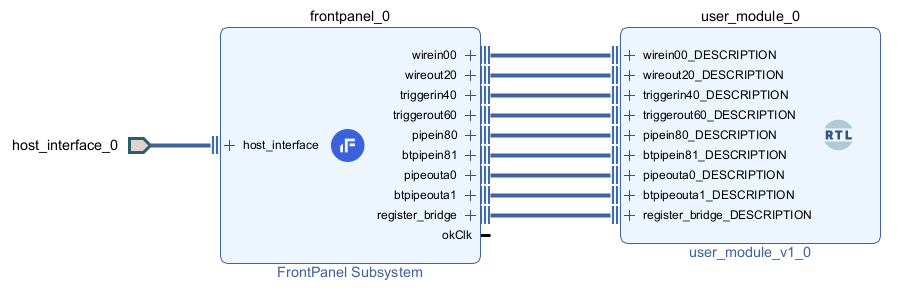
Tutorial
- Basics
- Instantiate IP Core in IP Integrator (IPI) Block Design
- Click Create Block Design.
- If using an Opal Kelly Board file, see Add FrontPanel Board Component in IPI and skip to step 3. Configuring & Generating the IP Core. Otherwise, right-click in the Block Designer and select Add IP.
- Search for the FrontPanel Subsystem IP Core and double-click it.
- Right-click on
host_interfaceand select Make External. (See Port Requirements Technical Reference for more information.)
- Configuring & Generating the IP Core
- Double-click on the FrontPanel Subsystem IP Block to open it up for configuration.
- On the Endpoints page:
- Enter a count of “1” for each of the Endpoint types. Leave the addresses at their defaults.
- Enable the Register Bridge Endpoint.
- Click OK.
- Click Generate Block Design.
- Adding an RTL module & Using the Interface Template
- Add an empty RTL module to the Vivado Project.
- Find
_bd_interface_template.vhlocated in the Synthesis folder in the IP Sources panel. - Copy the contents of this template into the port definitions of the empty RTL module. Remove the trailing comma from the last port definition.
- Right-click on the RTL module in Design Sources and select Add Module To Block Design.
- Establish Interface Connections in IPI
- Make interface-to-interface connections from the IP Core to the RTL module in the IPI Block Designer.
- Running the PipeTest IPI Block Designer Example Design
- For a complete IPI Block Designer example, open the PipeTest Block Designer Example Design. See the Example Designs tutorial for instructions on opening this example design