Application Launcher
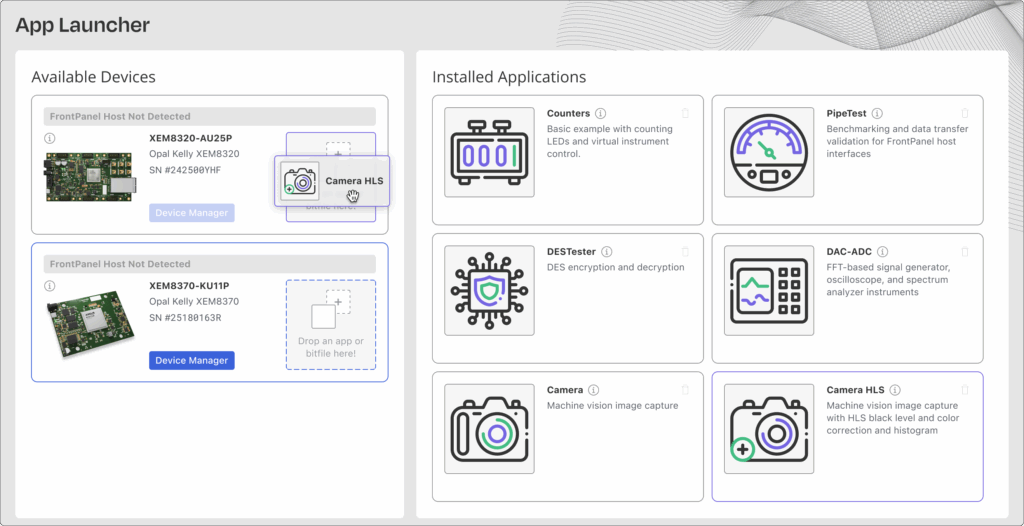
The FrontPanel Platform App Launcher provides a convenient workspace to manage your existing FrontPanel-enabled devices and launch Platform apps on the them.
Core Apps
Several core applications have been included with the FrontPanel Platform. While these applications may not be removed, you can hide them from the application launcher through the drop-down menu. These apps include:
- Counters – Displays two independent counters with controls for each.
- DESTester – A DES encryption / decryption app used to illustrate block data transfer to and from the FPGA.
- PipeTest – Connects to PipeIn and PipeOut modules on the FPGA to test transfer rates. Block sizes can be set by the user.
- RAMTester – Another block data transfer app that also demonstrates how to configure and use the on-board memory available on some modules.
More information about these core apps and other example apps available for the FrontPanel Platform is available in the FrontPanel SDK documentation.
Launching Apps
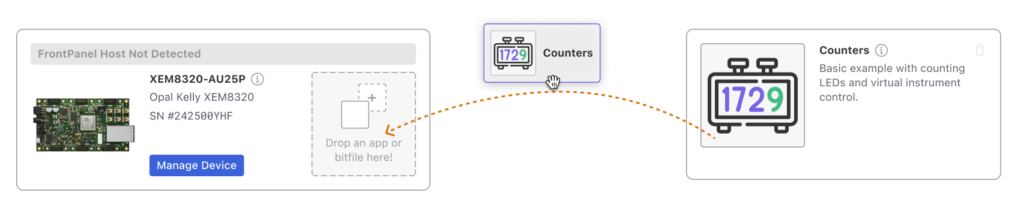
Apps can be launched by dragging the app from the Installed Applications list onto a compatible device.
Installing Apps
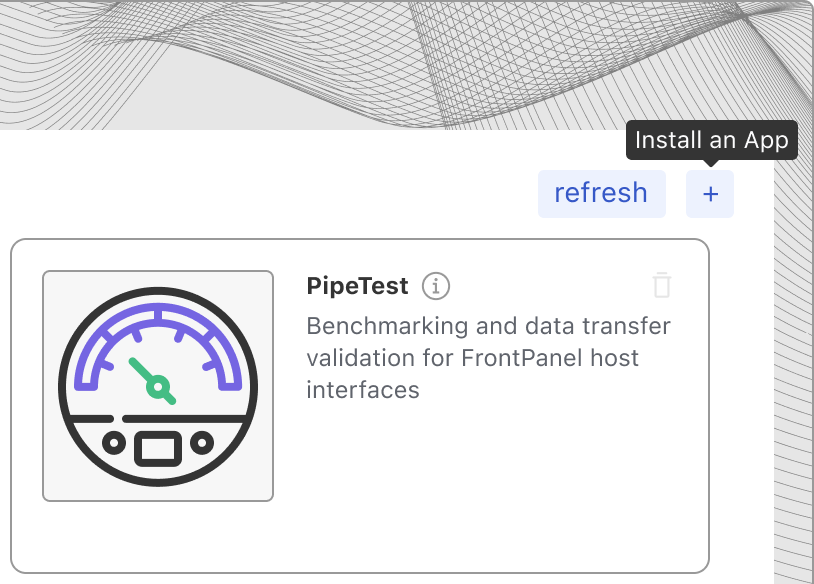
You install apps with the launcher by clicking the Install App icon at the top-right in the Installed Applications panel and selecting a FrontPanel App package to install. You can also install an app by dragging the fpp file and dropping it on the application panel.
Once it is installed you will see it in the list with the other apps and you can launch it by dragging it to a device.
Device View
Devices available to the Platform are shown on the left in the ‘Avaliable Devices’ panel. If another application is running that has opened the device, it will not be available to the Platform; devices are only available to one operating system process at a time.
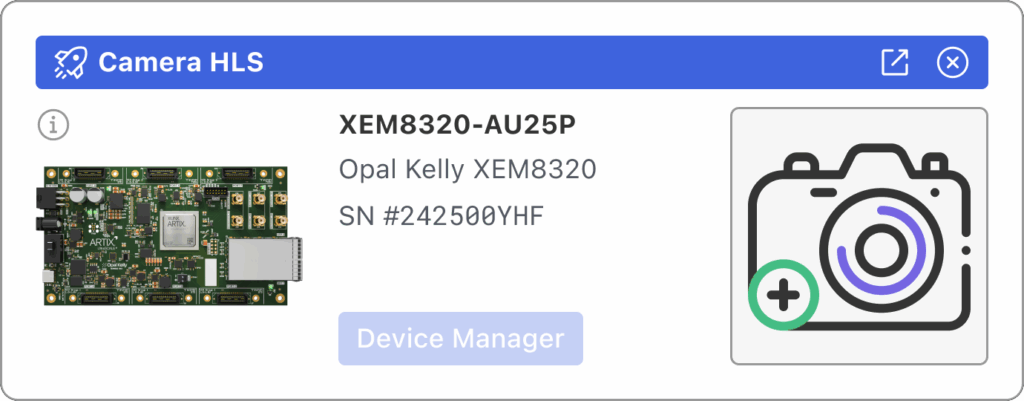
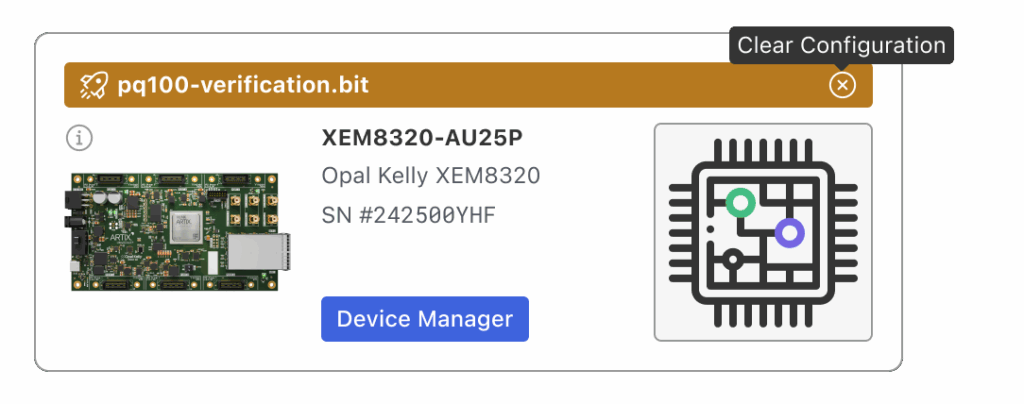
The device card shows a small image of the device on the left along with the product name, device ID, and serial number. If a Platform application is currently connected to the device, the application name is shown at the top of the device card and the application icon appears on the right. You can close the application or visit the application by clicking on one of the icons.
Click on the Device Manager to access device settings and features such as Device Info, Device Settings, and Device Sensors.
When gateware is detected on the device, but the device is not associated with an application, the top banner shows the bitfile name (if available) with an option to clear the FPGA configuration.
Application Permissions
Network
FrontPanel apps run in a sandboxed environment that blocks all external network requests by default. This means an app cannot make HTTP, HTTPS, WebSocket, or any other network calls to remote servers unless it explicitly declares the Network Access permission. Upon installation, the FrontPanel Platform notifies the user of which permissions are being requested and will only install the app if granted.
With Network Access, you are allowing the app to:
- Make HTTP and HTTPS requests to external servers (e.g., REST APIs, cloud services)
- Open WebSocket connections (
ws://andwss://) - Fetch remote resources such as images, data files, or configuration
What Network Access does NOT grant:
- Access to your local filesystem (
file://URLs remain blocked) - Node.js or operating system privileges
- Access to other FrontPanel apps or the platform’s internal state
Developer Notes
To request network access for your FrontPanel app, add a permissions object to your frontpanel-app.json manifest:
{
  "appGuid": "xxxxxxxx-xxxx-xxxx-xxxx-xxxxxxxxxxxx",
  "name": "My App",
  "permissions": {
    "network": true
  }
}Code language: JSON / JSON with Comments (json)
When network is true, the platform will not install the webRequest filter that blocks outbound requests on the app’s session. When network is omitted or false, all requests to external URLs (http, https, ftp, file, ws, wss, data, javascript, about) are cancelled before they leave the process.
How it Works
Each FrontPanel app runs in an isolated Electron Session partition. App content is served through the custom frontpanel:// protocol, which reads files directly from the app’s .fpp package. By default, a webRequest.onBeforeRequest handler is registered on the session that cancels any request matching an external URL scheme. When the network permission is granted, this handler is not installed, allowing standard browser networking APIs (fetch, XMLHttpRequest, WebSocket, EventSource) to function normally.
CORS Behavior
Because app content is served from the frontpanel:// custom protocol scheme, the browser’s Origin header for requests originating from your app will be null. This has important implications:
- Servers that reflect the
Originheader (e.g.,Access-Control-Allow-Origin: <origin>) will receivenulland may reject the request depending on their CORS configuration. - Servers that use the wildcard
Access-Control-Allow-Origin: *will accept requests from your app without issue, but note that wildcard CORS does not allow credentialed requests. - If you control the server, you can explicitly allow the
nullorigin:Access-Control-Allow-Origin: null. Be aware that this also permits requests from othernull-origin contexts (e.g., sandboxed iframes,file://pages), so combine it with other authentication/authorization mechanisms. - Simple requests (GET/POST with standard headers) that don’t require a preflight will succeed regardless of CORS headers — the response will be returned to the network layer, but the browser will block JavaScript from reading it if CORS headers are absent.
Recommendation for Developers
- Prefer server-side CORS configuration — configure your API to accept the
nullorigin if your app needs to call it directly. - Use a proxy or relay if you cannot control the target server’s CORS policy. A lightweight intermediary server that adds the appropriate CORS headers avoids client-side workarounds.
- Avoid credentialed cross-origin requests from null
origins— theAccess-Control-Allow-Origin: *wildcard cannot be combined withAccess-Control-Allow-Credentials: true, and explicitly allowing null for credentialed requests has broad security implications. - Test network behavior early — the custom protocol origin is unique to the FrontPanel runtime. Use the DevTools Network tab (View > Toggle Developer Tools) to diagnose CORS or connectivity issues.
Unrecognized Permissions
If your manifest includes permission keys not recognized by the installed version of FrontPanel, they will be listed as warnings during installation but will not block it. This allows forward compatibility — newer permissions are safely ignored by older platform versions.